NP4th user manual
- What NP4th does
- Core concepts
- Roles, EULA, and MSA
- Sign in and create an organization
- Dashboard layout
- Agent keys
- Install on Windows
- Install on macOS
- Installed agents
- Config: what agents test
- Runs & map
- Cloud Internet check
- Reports
- Users
- Settings
- Windows tray app
- Mobile agent (Android & iOS)
- Sites and test health
- Troubleshooting
- Getting help
This is the complete guide for NP4th — network path diagnostics for Windows and macOS. Agents probe the destinations you configure (DNS, ping, TCP, TLS, traceroute, optional UDP), upload results, and the dashboard maps hop paths so you can compare users, sites, and time of day.
Product URLs:
| URL | Purpose |
|---|---|
| np4th.com | Marketing site and contact form |
| app.np4th.com | Dashboard and API |
| np4th.com/docs | Knowledge base (this manual and topic guides) |
Bookmark app.np4th.com. Public marketing hosts redirect /dashboard there.
What NP4th does
Each agent is a PC (or Mac) in your organization. On a schedule, and when you click Run test, it:
- Resolves each target (DNS).
- Measures ping, TCP connect, TLS handshake, and traceroute hops as enabled per target.
- Uploads the run to your organization.
- The dashboard stores history, plots geo paths, ranks destinations, and alerts when failures stack up.
NP4th does not change routing, VPN, or firewalls. It shows where time is spent so you can change those systems yourself.
Core concepts
| Term | Meaning |
|---|---|
| Organization | Your tenant. First user is Owner. Identified by a slug (used in installs and SSO URLs; cannot be changed). |
| Agent | One machine. Identity is Windows MachineGuid or Mac IOPlatformUUID — reinstalls on the same hardware keep the same record. |
| Seat / license | One billable lease per device that scans. $1/month per seat, minimum 10. A scan holds the seat ~30 days or until the Stripe period ends. |
| Target | A host you probe (FQDN or IP), with Ping / TCP / TLS / Trace / UDP toggles and a port. |
| Run | One test cycle from one machine (or a cloud check). Manual = human-triggered. Web = cloud Internet check. |
| Source: Agent vs Service | Last heartbeat came from the tray (someone logged in) vs the Windows service (background, no interactive user). Same install. |
| Group | Assigns agents to a subset of tests. Ungrouped tests go to everyone. Multi-group agents get the union of those tests. |
Roles, EULA, and MSA
| Capability | Owner | Admin | User |
|---|---|---|---|
| Runs & map, Reports, Installed agents | ✓ | ✓ | ✓ |
| Config (targets, packs, groups) | ✓ | ✓ | |
| Users, Billing, Agent keys, Encryption, SAML, SIEM, Alert notifications, SLA, Network | ✓ | ✓ | |
| Accept MSA for the org | ✓ | ✓ | |
| Accept EULA (per user) | ✓ | ✓ | ✓ |
| Password sign-in when SSO is enforced | ✓ | ||
Break-glass /dashboard/local.html | ✓ |
The first user is Owner. Keep at least one active Owner.
Every user must accept the EULA. An Owner or Admin must accept the MSA for the organization before others can fully use the product. Until then, other users see that they are waiting on organizational acceptance.
Sign in and create an organization
- Open app.np4th.com.
- Create an organization (you become Owner) or sign in with password or SSO.
- Accept the EULA. Owner/Admin: accept the MSA for the org.
- Buy seats under Settings → Billing before agents can scan (when license enforcement is on).
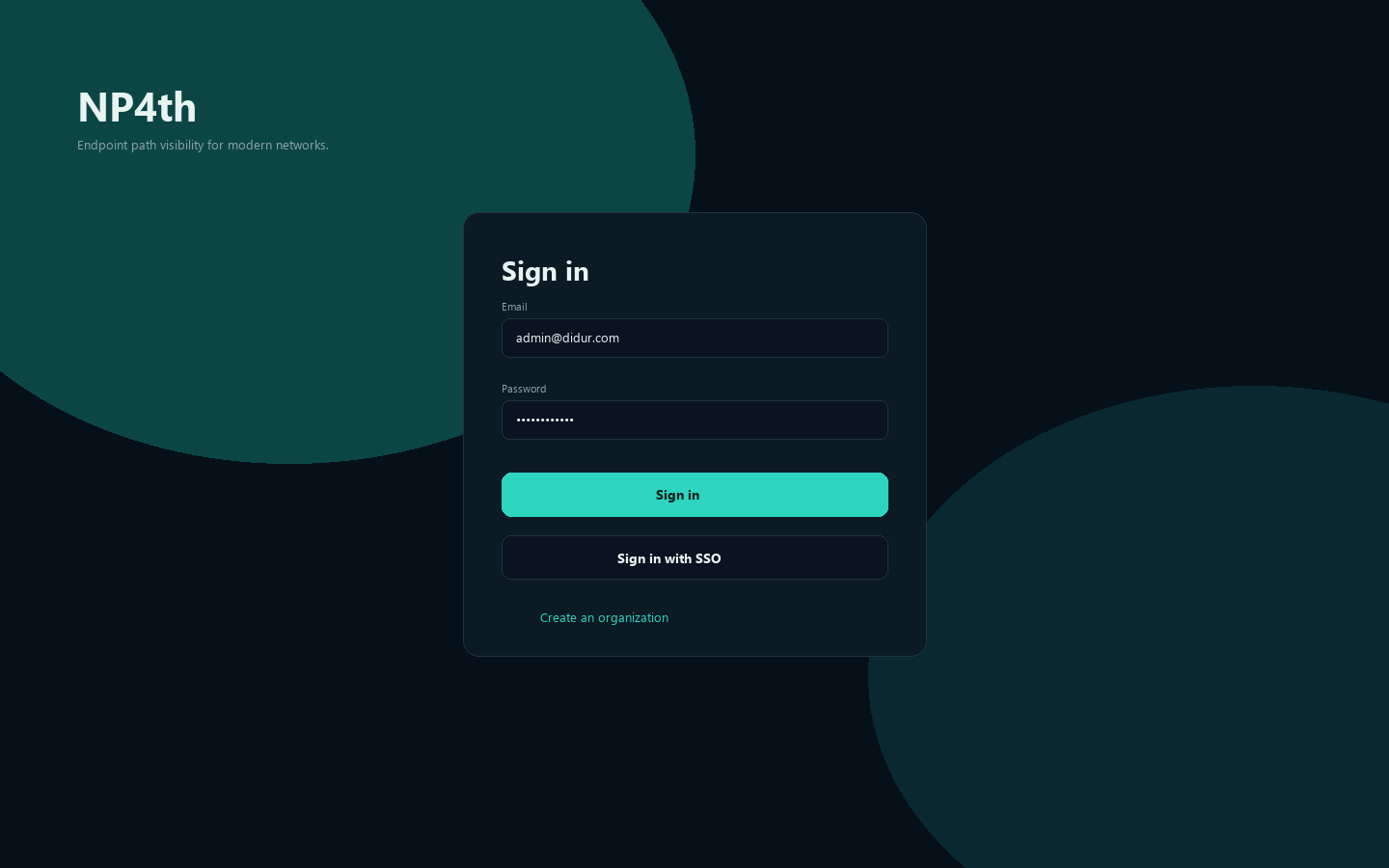
Owner break-glass if SSO locks everyone else out: app.np4th.com/dashboard/local.html (or ?local=1 / ?nosso=1).
Dashboard layout
After sign-in you get tabs:
| Tab | Who | What you do there |
|---|---|---|
| Reports | Everyone | Latency/loss leaderboard, time-of-day charts, per-endpoint drill-down |
| Runs & map | Everyone | Latest tests, hop table, path map, probe alerts |
| Installed agents | Everyone | Fleet list, Run test, Force update, Download installer, Delete |
| Config | Owner/Admin | Targets, probe options, service packs, groups |
| Users | Owner/Admin | Invite, roles, disable |
| Settings | Everyone (admin sections gated) | Profile, org, billing, keys, encryption, SSO, SIEM, alert notifications, SLA emails, UniFi |
Your default page (Reports, Runs & map, or Installed agents) is saved in Settings → Profile.
Agent keys
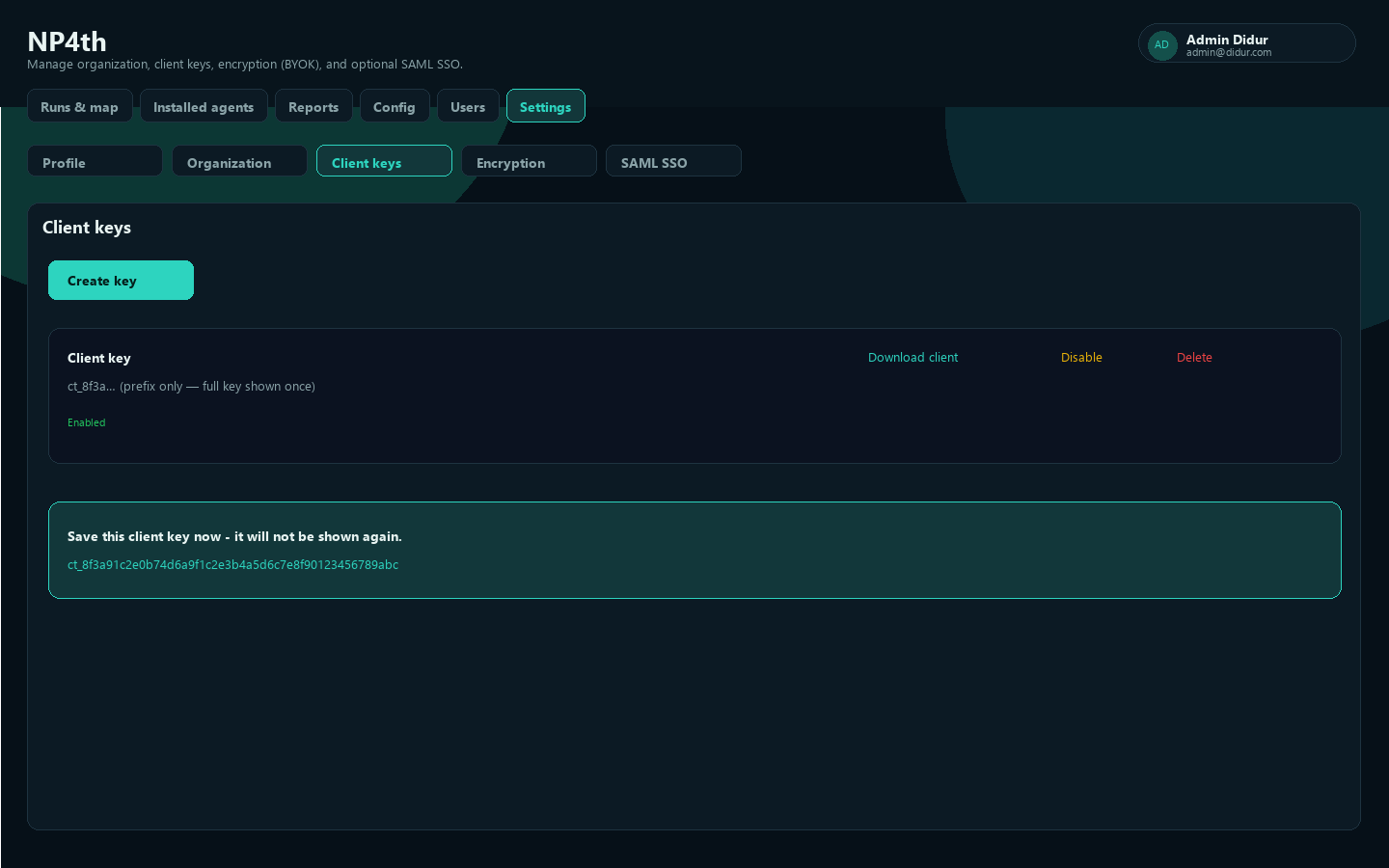
Agents authenticate with headers X-Tenant (slug) and X-Client-Key. Create keys as Owner/Admin: Settings → Agent keys.
- Create key (default name
Agent key). - Copy the value immediately. It starts with
ct_and is shown only once. - Prefer Download agent so endpoints never paste the key by hand.
Anyone with a live key can register agents and upload runs for your tenant. Treat keys like passwords.
| Action | Effect |
|---|---|
| Disable | Agents using that key stop uploading until you enable it |
| Enable | Restores a disabled key |
| Delete | Permanently removes a disabled key only |
Rotation: create a new key → deploy it → confirm heartbeats → disable the old key → delete after the fleet is migrated. Keep one valid key during rollout.
Install on Windows
Prerequisites
- Owner or Admin can create a key and download the installer
- Windows 10/11 x64
- Outbound HTTPS to
https://app.np4th.com - Location allowed for desktop apps (best hop-1 placement on the map)
- After install: NP4th service Running, and a signed-in tray session for UI / dashboard Run on my PC
Download
From Installed agents → Download installer, or Settings → Agent keys → Download agent. The ZIP includes:
NP4thSetup-<version>.execlient-config.json(tenant, key, API URL)Install-NP4th.cmd
Extract the ZIP before running the script. Do not run it from the ZIP window.
Interactive or silent EXE
Interactive: run NP4thSetup-<version>.exe. Enter API URL, tenant slug, and agent key if not pre-filled.
Silent:
NP4thSetup-2.0.28.exe /SILENT /TENANT=your-slug /KEY=ct_... /URL=https://app.np4th.com/TENANT= and /KEY= are required. /URL= defaults to https://app.np4th.com.
MSI (Group Policy)
When you need AD Software Installation or msiexec:
msiexec /i NP4th-2.0.28.msi /qn TENANT=your-slug KEY=ct_... URL=https://app.np4th.comAssign the MSI under Computer Configuration → Policies → Software Settings → Software Installation. For baked tenant/key without a command line, use an MST transform.
Uninstall: Start Menu Uninstall NP4th, Apps & Features, NP4thSetup.exe /SILENT /UNINSTALL, or msiexec /x NP4th-<version>.msi /qn.
What gets installed
| Component | Runs as | Job |
|---|---|---|
| NP4th.exe (tray) | Logged-on user | UI, Run test now, dashboard run-now in user VPN/firewall context |
| NP4th Windows service | LocalSystem | Scheduled probes while the PC is on, silent auto-updates (no UAC) |
| NP4thWatchdog task | SYSTEM | Every ~3 minutes: restart a stuck update service; relaunch a missing tray |
The dashboard Source column is the last of those two that heartbeated — not a different installer. Domain controllers with nobody logged in usually show Service. Desktops with a user session usually show Agent.
First tray run
- Allow Location for desktop apps when Windows prompts.
- Leave the tray running after sign-in.
- Tray: Run test now, or open the UI for Update config, Run full test, Run selected.
- Automatic updates is on by default. Uncheck it to stop scheduled installs; Check for updates still works.
- Update channel: Production (stable) vs Nightly (dev). Customers should stay on Production.
Confirm NP4th is Running in services.msc if updates never apply.
Install on macOS
- Install NP4th.app to
/Applicationsfrom the package your admin provides. - Launch NP4th. Enter tenant slug and agent key if the package was not pre-baked.
- Grant Local Network and Location when prompted. ICMP ping may be restricted; TCP/TLS still run.
- Update config, then Run full test or Run selected.
Background probes use launchd (NP4th --agent):
- Copy
packaging/com.didurlabs.np4th.plistto~/Library/LaunchAgents/(edit paths andStartInterval). - Keep
client-config.jsonnext to the binary. launchctl load ~/Library/LaunchAgents/com.didurlabs.np4th.plist
Label: com.didurlabs.np4th. Default interval 300 seconds. Device id is IOPlatformUUID.
Installed agents
Open Installed agents for fleet health.
| Column / action | Meaning |
|---|---|
| Online | Heartbeat or run within about 15 minutes |
| Billable | Activity in the last 30 days (visibility). Scanning still needs a purchased seat. |
| Source | Agent = tray last; Service = Windows service last |
| Tray / Service | Installed package versions |
| Run test | Queues a path check on that machine |
| Force update | Online Windows agents install the latest package now (even if auto-update is off) |
| Delete | Soft-delete: still billed until the 30-day window; releases the seat immediately |
| Restore | Returns a soft-deleted machine (heartbeat poll does not auto-restore) |
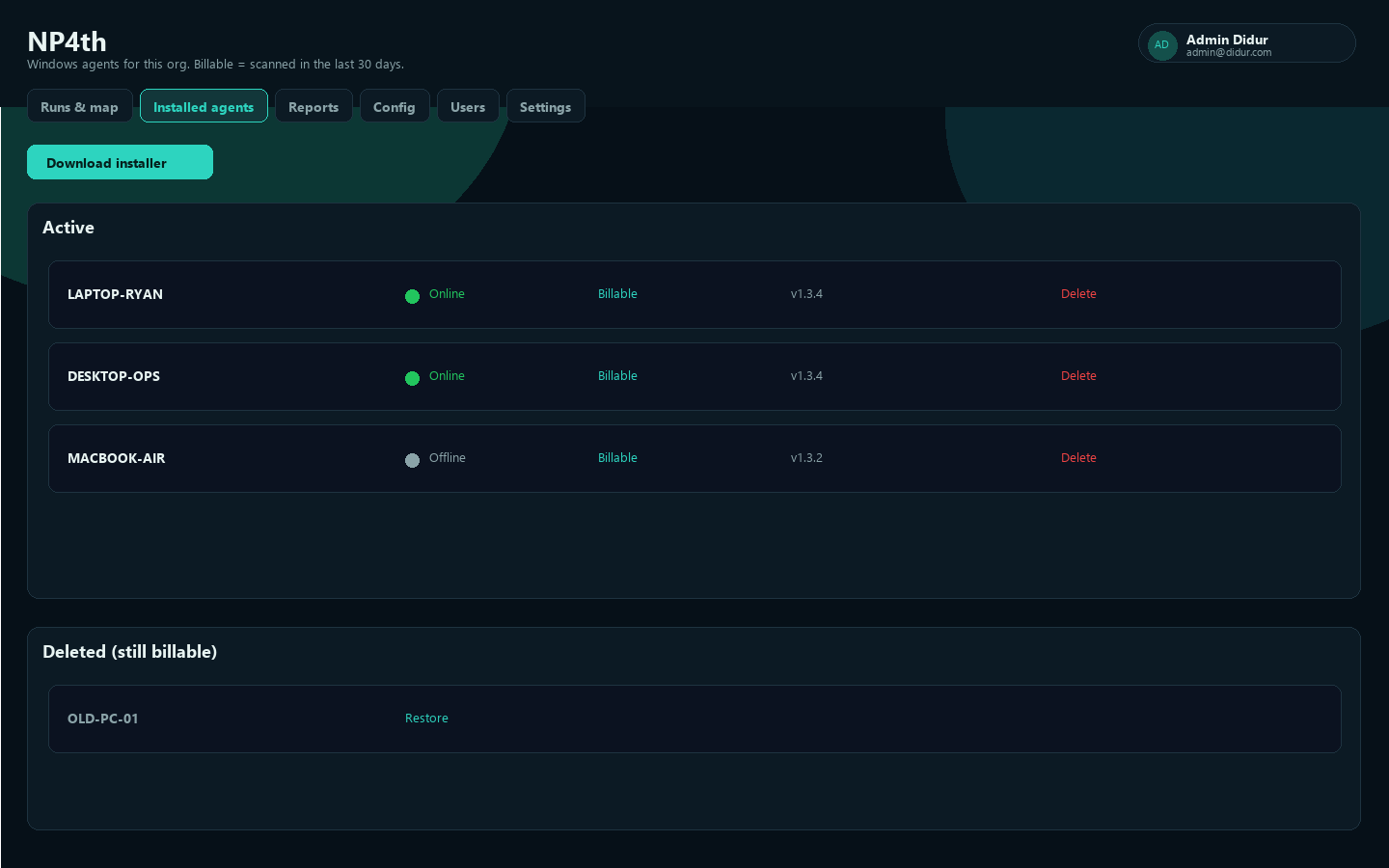
Device id is stable. Soft-delete when you need to free a seat without waiting for natural expiry.
Config: what agents test
Owner/Admin. Sub-nav: Targets | Probe options | Service packs | Groups. Agents pull config before each cycle (or after Update config on the tray).
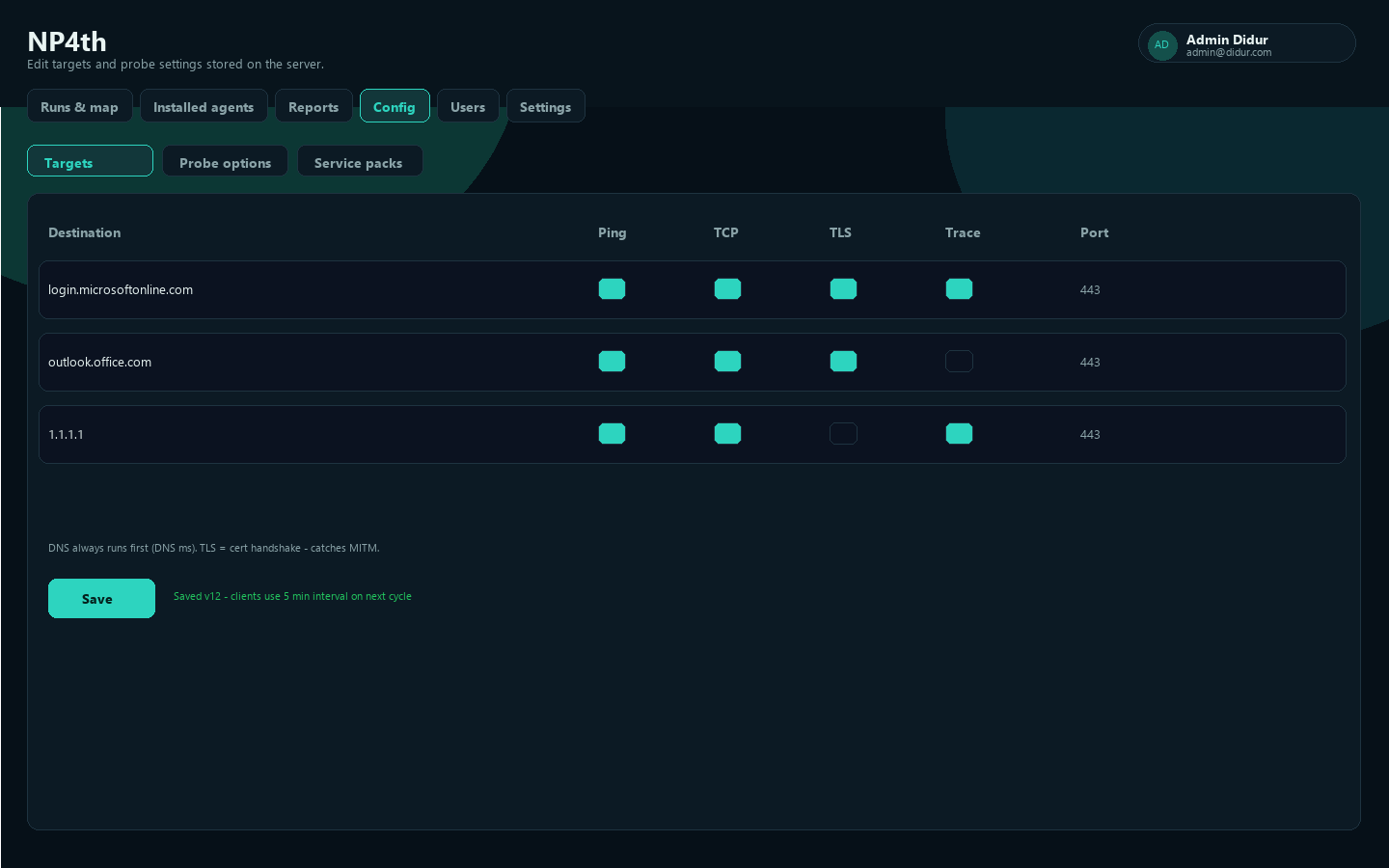
Checks per target
DNS always runs first.
| Check | Meaning |
|---|---|
| Ping | ICMP |
| TCP | Connect to the Port |
| TLS | Handshake and certificate validation (catches MITM) |
| Trace | Traceroute — required for hop paths on the map |
| UDP | STUN media canary where enabled |
Use concrete FQDNs (no wildcards). Tenant-specific hosts (Okta tenant, ServiceNow instance, Salesforce My Domain) should be added as custom targets after a pack.
Probe options
| Setting | Default | Range |
|---|---|---|
| Test interval (minutes) | 5 | 1–1440 |
| Ping count | 4 | 1–20 |
| Traceroute max hops | 30 | 1–64 |
| Timeout (ms) | 3000 | 500–30000 |
Save, then wait for the next cycle or Update config on agents.
Service packs
One-click destination sets (Microsoft 365, CrowdStrike Falcon US-1/US-2/EU-1, AWS/Azure/GCP consoles, Okta, Duo, Zoom/Webex/Slack TCP canaries, Salesforce/ServiceNow/Atlassian, GitHub, Box/Dropbox, Zscaler, SentinelOne, internet baselines). UDP media is not probed — packs use TCP/443 (or documented TCP). After applying a pack, review Targets and Save.
Groups
Config → Groups: create a group, assign agents and tests. New groups start with all tests selected.
Agents receive:
- tests with no group (everyone), plus
- the union of tests on any group the device belongs to
Ungrouped agents get only ungrouped tests. Admin Config always shows the full list.
Runs & map
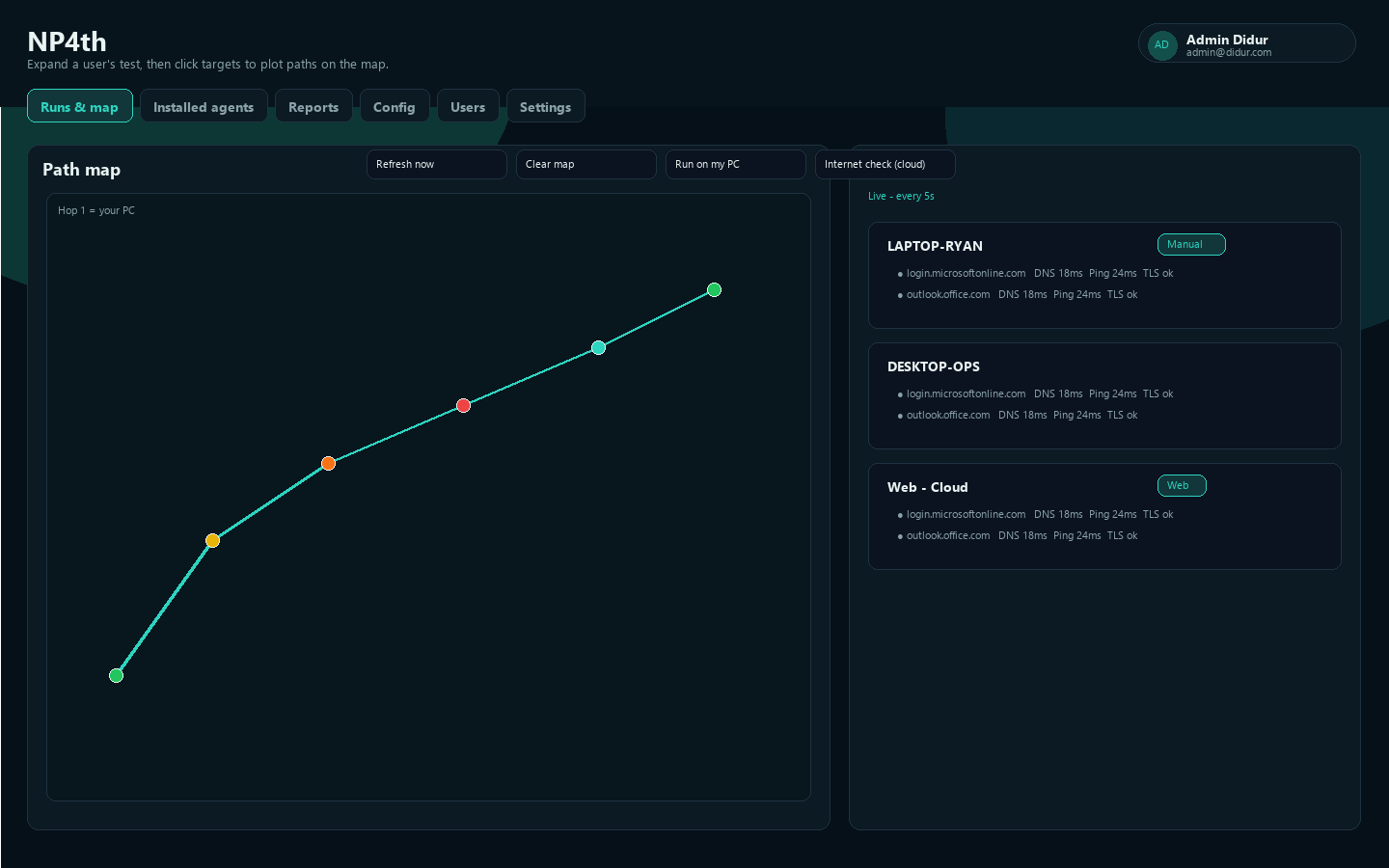
Home view for a single test. Expand a computer under Test runs, then click a target to plot that path.
| Control | Purpose |
|---|---|
| Search | User, machine, IP |
| All destinations | Filter the list |
| Live - every 5s | Auto refresh |
| Refresh now / Clear map | Manual refresh or reset layers |
| Run on my PC | Queue a test on your signed-in Windows session (user VPN context) |
| Internet check (cloud) | Same targets from NP4th cloud as a baseline |
Hop 1 is the endpoint (Windows location when allowed; otherwise a public-IP estimate). Private/reserved hops are skipped on the map — you may see fewer dots than traceroute hops. Numbered dots are hop order; color matches the selected target.
Manual badge = human-triggered. Web badge = cloud check.
Open a run’s detail drawer for DNS ms, ping/TCP/TLS, hop table with RTT, and (if UniFi is configured) AP/SSID/switch names.
Probe alerts
After each upload, the API counts consecutive failures per device + target:
- TLS-on targets: TLS handshake failure
- TLS-off targets: overall target failure
- Default threshold 3 consecutive failures
- One open alert until a success or an admin Resolve (resets the failure counter; Resolve all clears every open alert)
If CrowdStrike Falcon is installed and TLS fails to crowdstrike.com / cloudsink.net, severity is high (sensor likely cannot check in). A Probe alerts banner appears above the map — click it to review.
Reading paths (and making them more efficient)
NP4th shows where time is spent. It does not reroute traffic.
- Click the destination that matters (for example your VDI host).
- Find the hop where RTT jumps. That hop is the problem, not hop count.
- Watch for hairpins (path leaves the site, goes to another city, then back).
- Compare two agents to the same destination (office vs home, DC vs laptop).
- Compare Internet check (cloud) vs the agent. If cloud is clean, the extra delay is on that user’s path.
Typical fixes: LAN/Wi-Fi (first hops), ISP/peering (first public hop jump), split-tunnel or SD-WAN exit near the destination (avoid HQ hairpin), closer DNS, or VDI session settings when last-hop RTT already matches geography (for example India → Las Vegas).
Use Reports over 7/30/90 days so you are not chasing one sample. After a WAN/VPN change, Run test on the same machines and compare hop tables.
Cloud Internet check
- On Runs & map, click Internet check (cloud).
- Confirm the modal (identity like Web - Cloud).
- Results appear in Test runs with a Web badge.
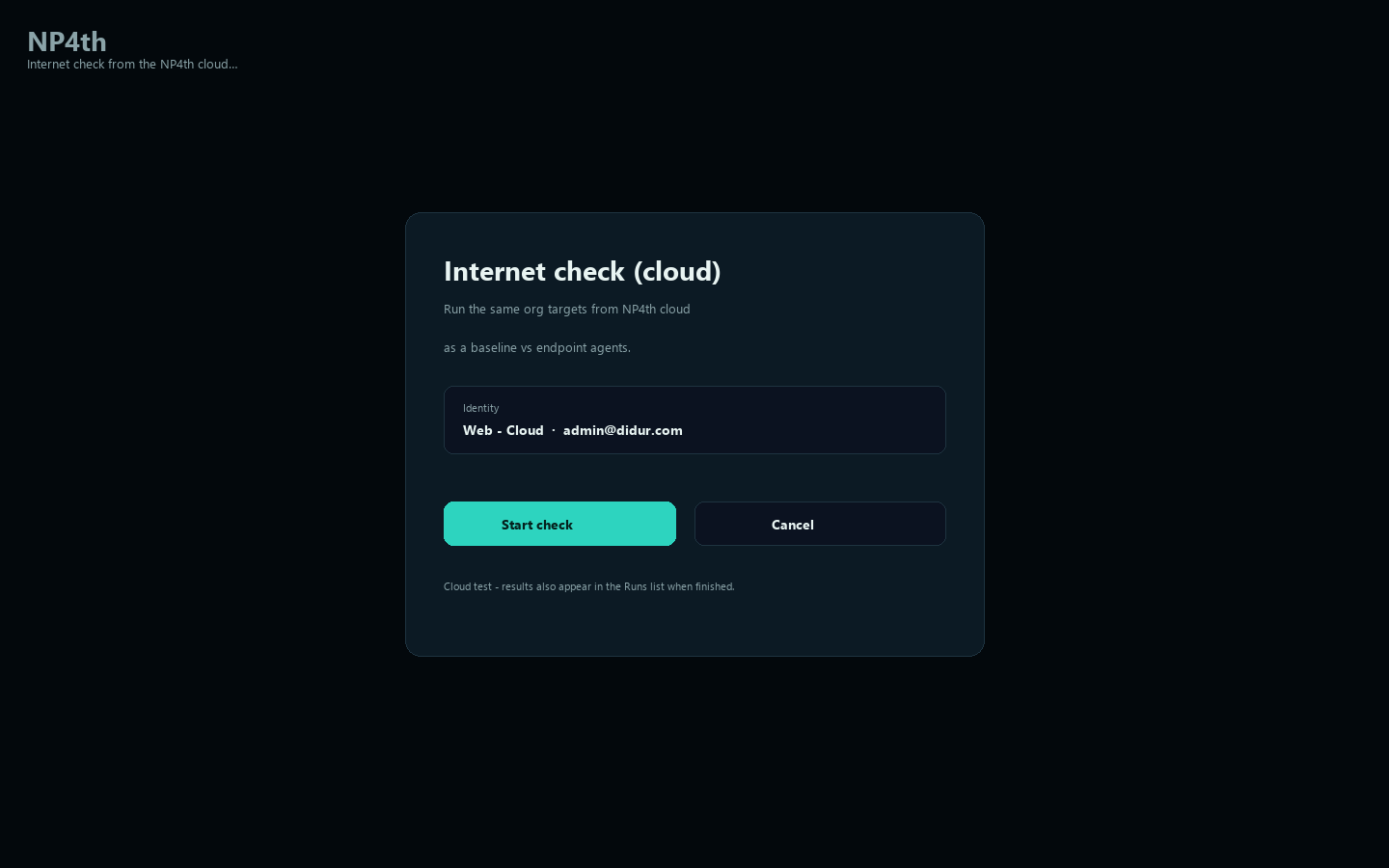
Use this to separate “destination is down” from “this PC’s path is bad.”
Reports
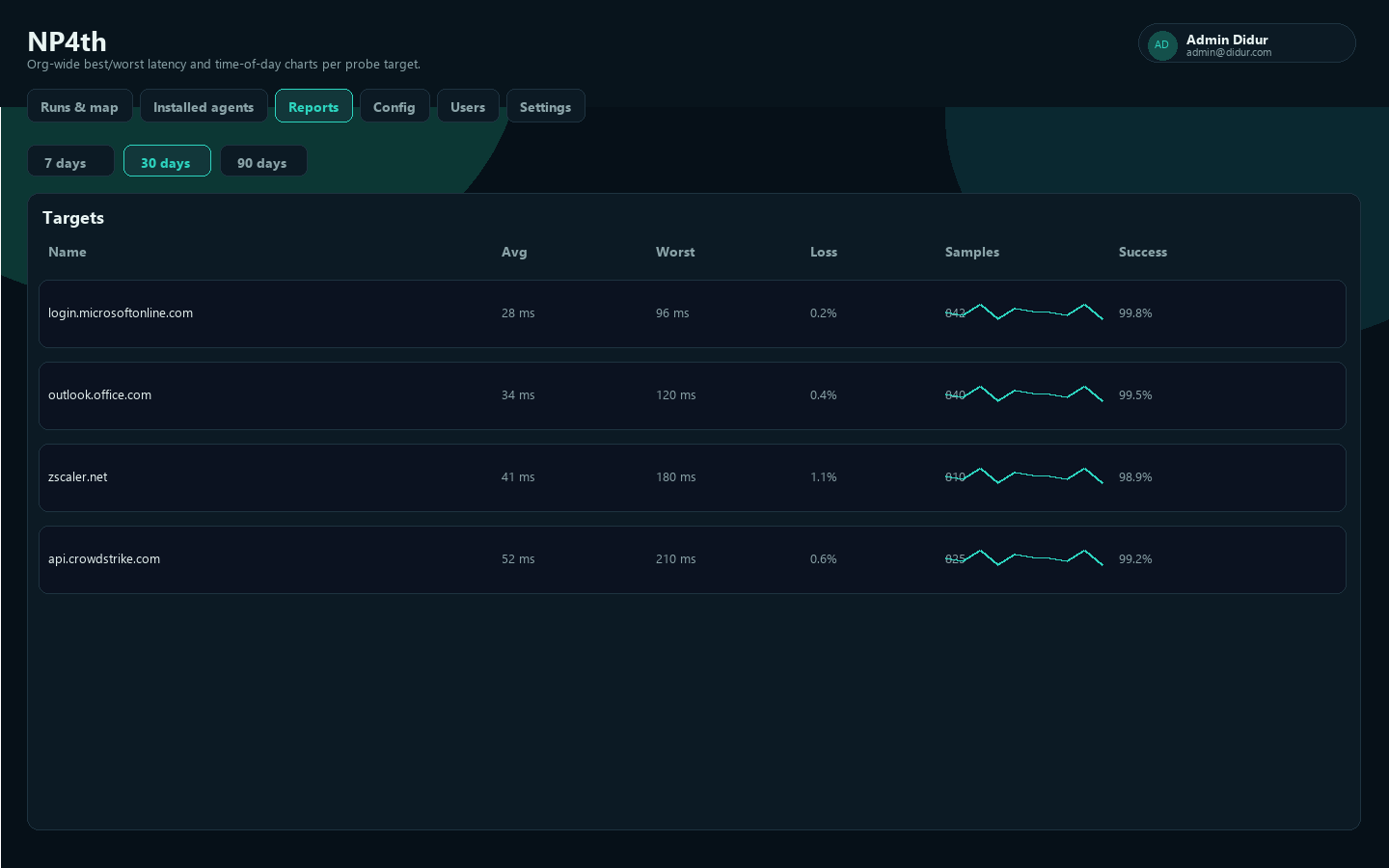
Org-wide best/worst latency and loss by destination. Search on Runs does not filter Reports.
- Range: 7 days, 30 days, 90 days
- Sort: Name, Avg, Worst, Loss, Samples, Success
- Open a destination for per-agent paths and Latency over time
- All tests view: one representative path per endpoint in the range
Users
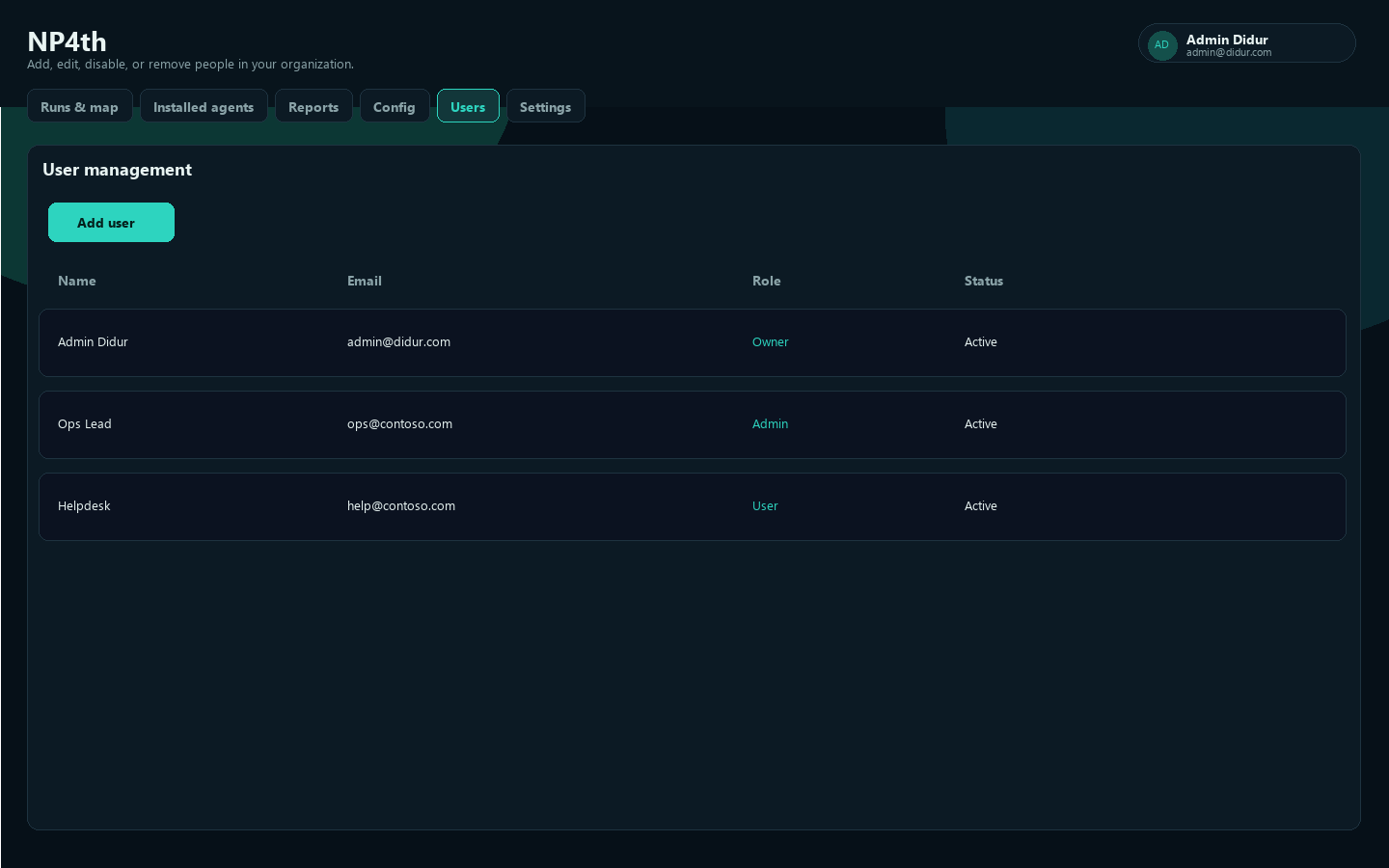
Owner/Admin. Add people, set Owner / Admin / User, disable, reset password (password accounts), lock a role so Entra groups cannot change it. Owner is not assigned by default SSO mapping — keep Owners as break-glass.
Settings
Profile
Name, email, phones, default dashboard tab. SSO users see Entra groups from the last SSO sign-in. Role is usually set by Entra mapping; Owner stays locked.
Organization
Display name (slug is read-only). Owner/Admin can edit.
Billing & licenses
$1 / agent / month, minimum 10 seats. Subscribe from Settings → Billing. Purchase licenses opens Stripe Checkout. Manage / cancel in Stripe opens the Customer Portal. Access continues until the paid period ends.
A device grabs a seat on scan (or license check) and holds it for 30 days or until the current subscription period ends, whichever is earlier. The same device scanning again refreshes the hold.
If an agent says no license is available: buy more seats, or Delete an unused agent to free a seat immediately.
Encryption
Tenant data is encrypted with a per-tenant key. Optional customer master key (BYOK) wraps it. Losing the CMK makes ciphertext unreadable. Set / replace CMK, Unlock after restart, Use platform wrap, Rotate DEK.
SAML SSO
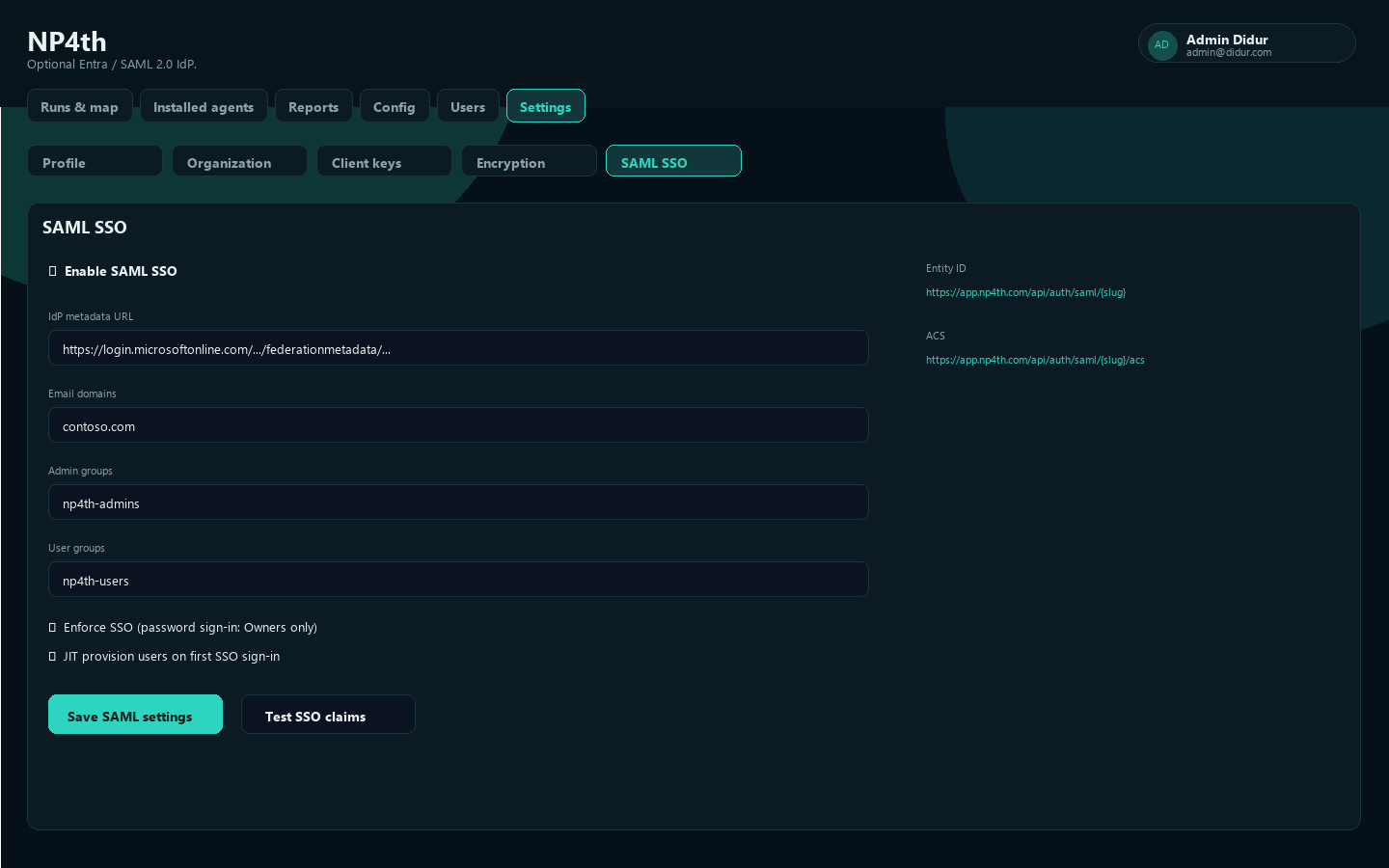
Settings → SAML SSO. Register in Entra (or another SAML 2.0 IdP):
| Field | URL |
|---|---|
| Entity ID | https://app.np4th.com/api/auth/saml/{slug} |
| ACS | https://app.np4th.com/api/auth/saml/{slug}/acs |
| SP metadata | https://app.np4th.com/api/auth/saml/{slug}/metadata |
Enable SAML, paste IdP metadata URL or XML, claim email domains (not public Gmail/Outlook), map Admin groups and User groups, set default role, optional JIT provision and “require group membership.”
Test SSO claims before Enforce SSO. With enforce on, only Owners can use password sign-in.
SIEM export
Forward selected audit events to an HTTPS webhook (JSON POST) or syslog (UDP/TCP, RFC 3164 or 5424). Syslog host must be reachable from the NP4th cloud — LAN addresses will never receive packets. Test host & port and Send test use the saved destination. Enable export for live events.
Alert notifications
Settings → Alert notifications. Real-time email and/or webhook when probe alerts open or resolve (including UniFi attachment-change alerts). Configure:
- Email recipients — comma-separated; requires platform SMTP (
ContactMail). - Webhook URL — Teams, Slack, or any HTTPS endpoint that accepts JSON (
probe.alert.opened/probe.alert.resolvedevents). - Minimum severity — warning (default) or high only.
- Notify on resolve — optional recovery notifications.
- Quiet hours — suppress delivery during a local time window (e.g. 22:00–07:00).
Use Send test notification after saving to verify delivery. Alerts still appear in the dashboard Alerts panel; this adds outbound notification.
Billing and free trial
New organizations get 10 agent seats free for 30 days at signup (full registration still required). Billing does not start until the trial ends, or when you start Checkout earlier. Extra seats can be purchased anytime; the trial window is preserved as Stripe trial_end so the first charge is on the next billing cycle after the free period. If the trial ends with no paid subscription, seats drop to zero.
SLA digests
Daily email comparing the last 7 days of probe loss/latency to the prior 7 days. Multiple profiles: name, recipients, send hour, time zone, scope (entire org or selected agent groups). Send test now prefixes the subject with [TEST]. Requires platform SMTP.
Network (UniFi)
Sites → open a site → UniFi integration. Cloud mode needs a Site Manager API key from unifi.ui.com → Settings → API Keys — not a local Network Integration key from the console. Each physical site has its own integration; topology applies to agents assigned to that site. When enabled, traceroute hops can show AP/switch/gateway names; runs can show SSID, Wi-Fi blame hints, and attachment-change alerts. Settings → Network lists all sites and links into the Sites tab for configuration.
Windows tray app
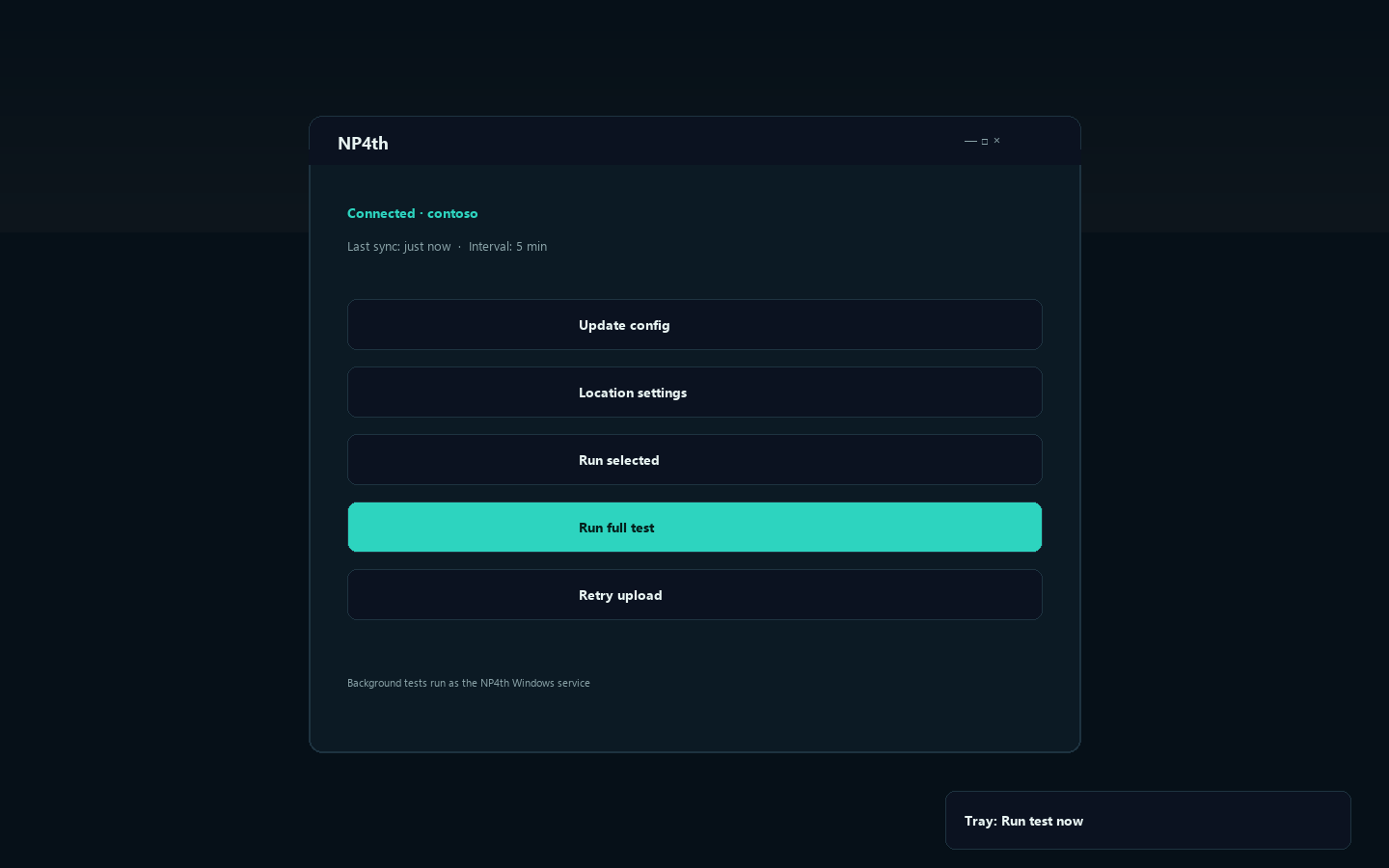
The desktop UI shows identity, carrier/ISP, private/public IP, VPN hint, and location status. Typical actions:
- Update config — pull latest targets and interval
- Run full test / Run selected
- Tray: Run test now, Automatic updates, Update channel, Check for updates, Location settings
Leave the tray running after sign-in so dashboard Run on my PC and run-now commands execute in the user session (same firewall/VPN as the person). Scheduled probes still run in the service when nobody is logged in.
Mobile agent (Android & iOS)
The ConnectTest.Client.Mobile MAUI app runs manual connectivity tests from phones and tablets. Runs upload with source mobile and count toward agent seat licensing like desktop agents.
Setup
- Build/deploy the mobile app (requires .NET 8 SDK + MAUI workload).
- Enter API base URL, tenant slug, and client key (same as desktop).
- Tap Sync targets to pull org config, then Run test now.
Android background schedule
On Android, Start background schedule runs probes on your org interval via a foreground service (minimum 15 minutes between cycles). iOS v1 is manual run only (App Store background limits).
Config is stored under app data (client-config.json). Device id is persisted locally for stable seat assignment.
Sites and test health
Sites (dashboard tab) group agents by shared public egress (IPv4 /24). After enough evidence (several devices or many runs on the same cluster), NP4th suggests a site you can rename and activate. Open a site to see agents, 7-day test success rates, and open alerts — useful when a test fails from one office but not another.
Test health: Reports show per-target success rates. Targets with ≥20 samples and ≤5% success are flagged Bad test? (likely misconfigured), as opposed to a site-local network problem.
Troubleshooting
Offline agent
- Windows: NP4th service Running; tray
NP4th.exeif someone is signed in. Mac: launchdcom.didurlabs.np4th. - Agent key still enabled.
- Outbound HTTPS to
https://app.np4th.com. client-config.json:tenantSlug,clientKey,apiBaseUrl.- Online means activity in about 15 minutes.
Agent never updates (Windows)
Silent updates use LocalSystem. Tray only drops ProgramData\NP4th\updates\check-now.flag.
- Service Running. Watchdog relaunches a missing tray after updates.
- Tray Automatic updates checked (or use Check for updates / dashboard Force update).
- Server has a newer
NP4thSetup.exe+version.txt. - Optional status:
%ProgramData%\NP4th\updates\update-status.txt. - After a silent update you should see an NP4th updated balloon.
Machines stuck on very old agents may need uninstall, then a fresh current Setup.
Tray icon missing
Confirm NP4th.exe in Task Manager. Check the notification overflow. Wait a couple of minutes after an update for Watchdog. Avoid launching a second copy.
Empty map / no hops
Click a target after expanding a run. Enable Trace on that destination and wait for agents to sync. Private hops are skipped for geo. Clear map if the layer looks stale.
TLS / MITM failures
TCP can succeed while TLS fails if SSL inspection’s CA is not trusted on the endpoint. Confirm Port. Compare with Internet check (cloud).
SSO loops or lockouts
Check Entity ID/ACS slug, Test SSO claims, email domains and group IDs. Owner: /dashboard/local.html. Turn off enforce, fix mapping, re-test.
No license available
Buy seats or soft-delete an unused agent. Complimentary grants (if your operator applied them) expire on the date they set.
Permissions
| Problem | Fix |
|---|---|
| Interactive test needs location | Location on for desktop apps; agent Location settings |
| macOS Local Network denied | Grant it; Update config |
| macOS ping fails | Expected on some Macs — TCP/TLS still run |
| Cannot open Config / Users / keys | Need Owner or Admin |
| Waiting on MSA | Owner or Admin must accept |
| Silent install fails | /TENANT= and /KEY=; extract ZIP first |
| Uploads stop after key change | Enable key or deploy the new key |
Getting help
Use the contact form on the marketing site. Include:
- Tenant slug
- Approximate time (and time zone)
- Machine name / device id
- Whether Internet check (cloud) also fails
- Screenshot of the hop table or probe alert if relevant
Topic guides: Getting started - Windows, macOS, Agent keys, Dashboard, Probe targets, SSO, Roles and billing, Troubleshooting.