Getting started - macOS
Install the NP4th Mac agent, grant required permissions, sync org config, and confirm background probes via launchd.
Prerequisites
- An NP4th organization with an Owner or Admin account
- A macOS package from your admin (dashboard download when published)
- Outbound HTTPS to
https://app.np4th.com - Permission to install apps under
/Applications
Install
- Obtain the macOS package for your organization.
- Install NP4th.app to
/Applications. - Launch NP4th. If the package was not pre-baked, enter your tenant slug and agent key (from Settings → Agent keys).
Tip
Admins can bake tenantSlug and clientKey into the distributed package the same way Windows ZIPs ship client-config.json.
Permissions
Grant when prompted:
- Local Network — required for many probe types on modern macOS
- Location — used when available for map placement (Hop 1)
If ping (ICMP) is restricted by the OS, TCP and TLS checks still run. See Troubleshooting.
Sync config and run a test
- Click Update config to pull the latest targets, service packs, and Test interval from the server.
- Choose Run full test or Run selected.
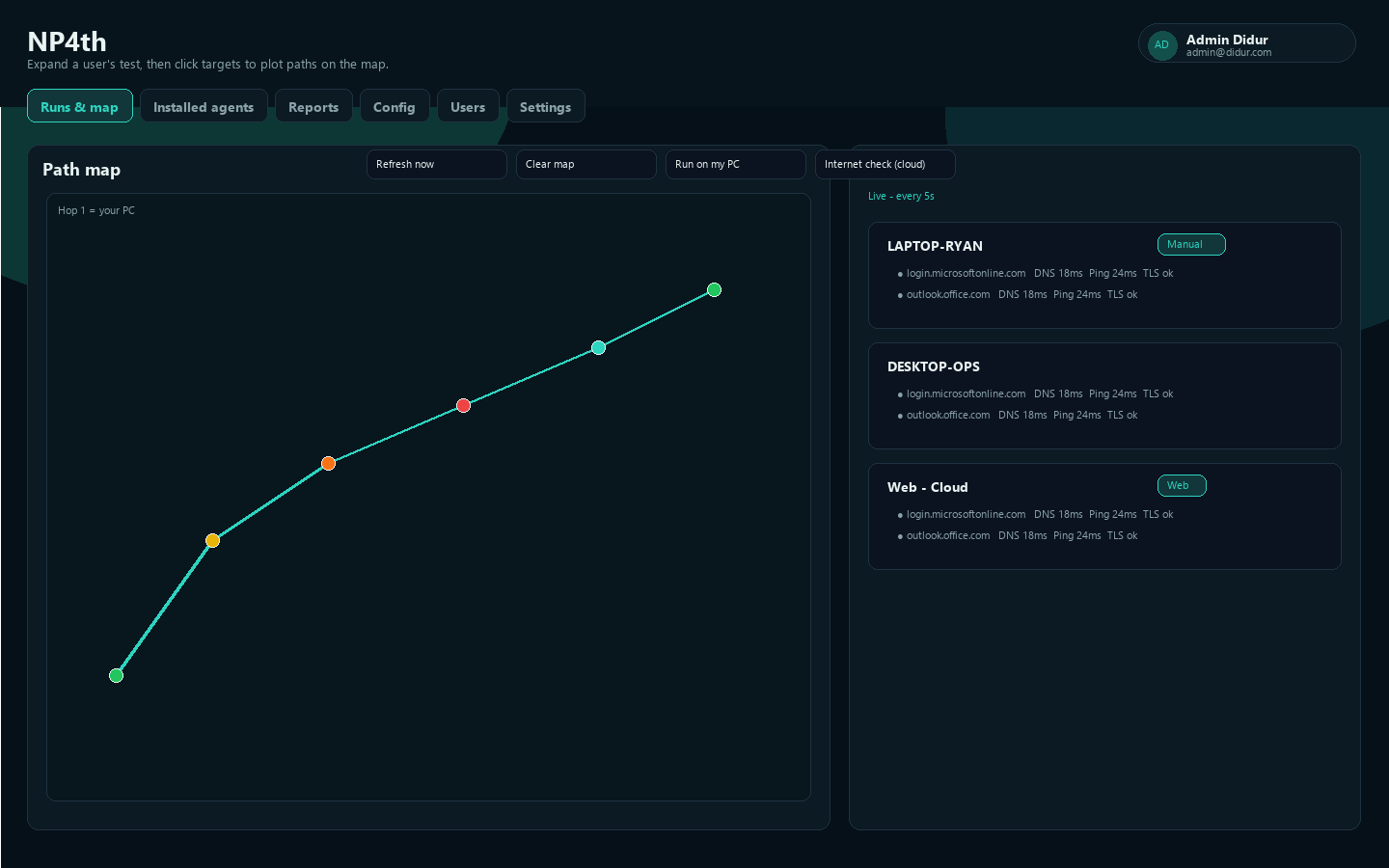
- Confirm the run appears under Runs & map on the dashboard.
launchd background agent
Background probes use launchd with NP4th --agent (headless):
- Copy
packaging/com.didurlabs.np4th.plistinto~/Library/LaunchAgents/(edit paths andStartIntervalas needed). - Ensure
client-config.jsonsits next to the binary withapiBaseUrl,tenantSlug, andclientKey. - Load:
launchctl load ~/Library/LaunchAgents/com.didurlabs.np4th.plist
The agent syncs config on an interval, uploads scheduled runs, and honors dashboard Run now commands.
- Label:
com.didurlabs.np4th - Program:
/Applications/NP4th.app/Contents/MacOS/NP4th --agent RunAtLoadis enabled;StartIntervaldefaults to 300 seconds (aligned with org interval when synced)
Device identity uses the Mac hardware UUID (IOPlatformUUID), so reinstalls on the same Mac keep the same agent record when the key remains valid.
Verify
- On the dashboard, open Installed agents and confirm the Mac shows as online (heartbeat or run upload within about 15 minutes).
- Open Runs & map, expand the computer, and inspect per-target results.
- If the agent is missing, confirm launchd is loaded and the agent key is enabled.